
How to Install HotPlayer on Smart TV
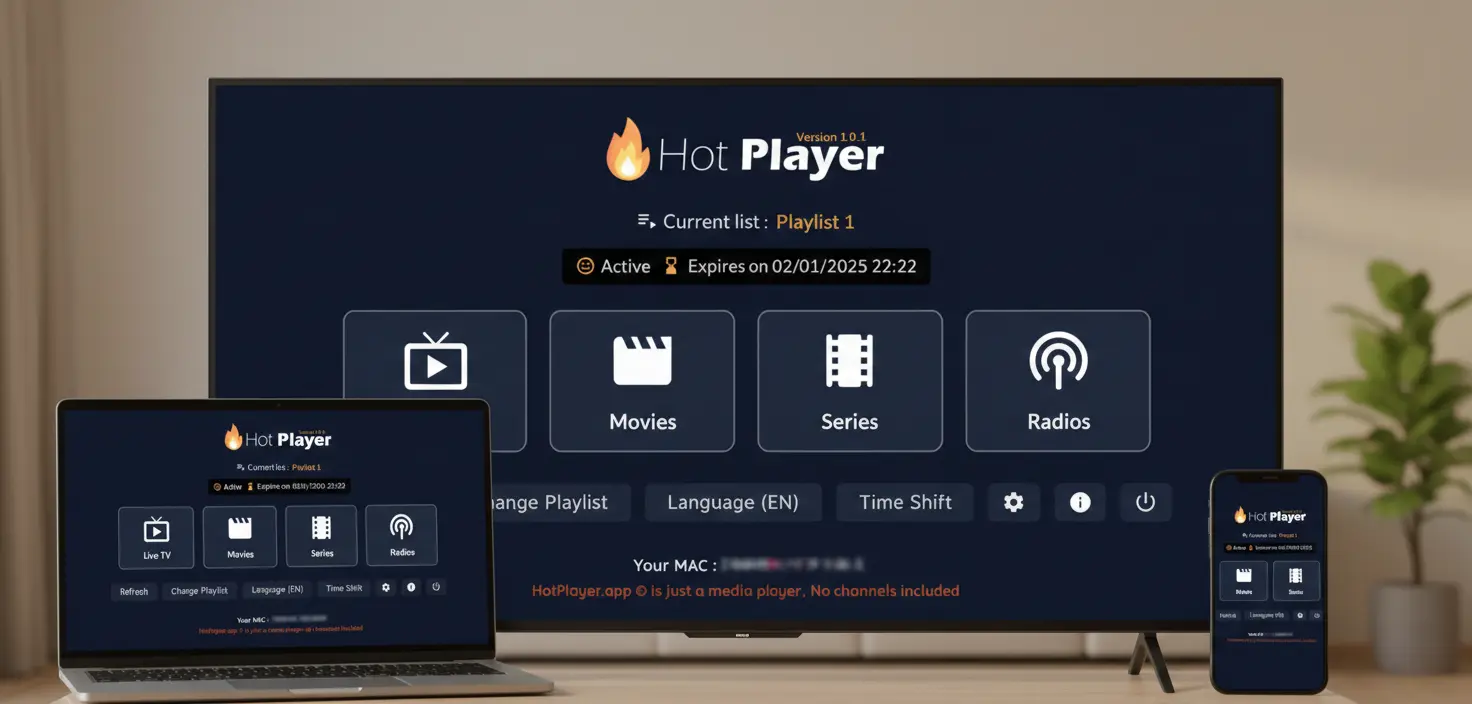
Transform your Smart TV into a powerful IPTV streaming hub with HotPlayer. Whether you own a Samsung, LG, Roku, or Android TV, this guide walks you through the installation process for each platform—getting you from setup to streaming in minutes.
Important: App vs. Service
HotPlayer app is a free IPTV media player installation - it does NOT include, provide, or host any content.
HotPlayerPro (our service) provides IPTV playlist subscriptions with 40,000+ channels. You need BOTH the app AND a playlist subscription.
📺 Supported Smart TV Platforms
Samsung (Tizen OS)
Samsung Smart Hub
Install from Samsung Apps store on Tizen OS
LG (WebOS)
LG Content Store
Install from LG Content Store on WebOS
Roku
Roku Channel Store
Add channel from Roku Channel Store
Android TV
Google Play Store
Install from Google Play Store (Sony, TCL, etc.)
✅ Requirements: Stable internet (10+ Mbps), updated TV firmware, and IPTV playlist subscription
🔷 Samsung Smart TV (Tizen OS)
Samsung Smart TVs use Tizen OS with the Smart Hub interface. Installation is straightforward through Samsung Apps.
Installation Steps
Press Smart Hub Button
On your Samsung remote, press the colored Smart Hub button
Navigate to Apps
Select "Apps" section from Smart Hub menu
Search for HotPlayer
Use search function → Type "HotPlayer"
Install & Open
Tap "Install" → Wait 1-2 min → Open app
💡 Tip: Can't find it? Ensure your TV firmware is updated. Older Samsung TVs may need a streaming device like Firestick.
🟣 LG Smart TV (WebOS)
LG Smart TVs run WebOS and use the LG Content Store for app installation.
Installation Steps
Press Home Button
On your LG remote, press the Home button
Open LG Content Store
Navigate to and select "LG Content Store"
Search & Select
Use search → Type "HotPlayer" → Select app
Install & Launch
Click "Install" → Wait for download → Open app
🟢 Roku
Roku devices and Roku TVs add HotPlayer as a channel through the Roku Channel Store.
Installation Steps
Access Home Screen
Press Home button on Roku remote
Open Channel Store
Navigate to "Streaming Channels" → Press OK
Search & Add
Search "HotPlayer" → Select → Add Channel
Install Complete
Return to Home → Find HotPlayer → Launch
🔗 Quick Add: On computer, visit Roku Channel Store → Search "HotPlayer" → Click "Add Channel" to send directly to your Roku.
📋 Add Your Playlist (All Platforms)
After installing HotPlayer, add your IPTV playlist to start streaming:
Open HotPlayer Settings
Launch app → Navigate to Settings/Playlist → Add Playlist
Enter URL (Recommended)
Select "M3U URL" → Carefully type playlist URL using TV remote → Save
🎯 Remote Tip: Typing long URLs with TV remote is tedious. Use Xtream Codes method instead (shorter Server URL + Username + Password) for easier entry on Smart TVs.
🔧 Quick Troubleshooting
Can't find HotPlayer in TV app store
✓ Update TV firmware to latest version
✓ Try searching "Hot Player" (with space)
✓ Check if your TV model supports the app
✓ Consider using a streaming device (Firestick, Roku Box)
Installation fails or gets stuck
✓ Check internet connection (Wi-Fi or Ethernet)
✓ Ensure sufficient storage space on TV
✓ Restart TV (unplug 30 seconds)
✓ Clear app store cache in TV settings
Difficult to enter playlist URL
✓ Use Xtream Codes method (shorter inputs)
✓ Use TV's companion mobile app for easier typing
✓ Download M3U file to USB and upload from file
✓ Copy URL carefully - verify it starts with http:// or https://
Channels buffer or won't play
✓ Test internet speed (need 10+ Mbps for HD)
✓ Use Ethernet cable instead of Wi-Fi
✓ Lower streaming quality in app settings
✓ Close other apps on TV
✓ Restart router and TV
💬 Need Help?
- • Email: support@hotplayerpro.org
- • FAQ: Visit FAQ page
- • Contact: Contact form
Ready for Big-Screen IPTV?
Installation varies by platform but typically takes under 5 minutes. Find your TV brand above and follow the steps.
Stream 40,000+ channels and 100,000+ VOD on your Smart TV!