
How to Install HotPlayer on Every Device
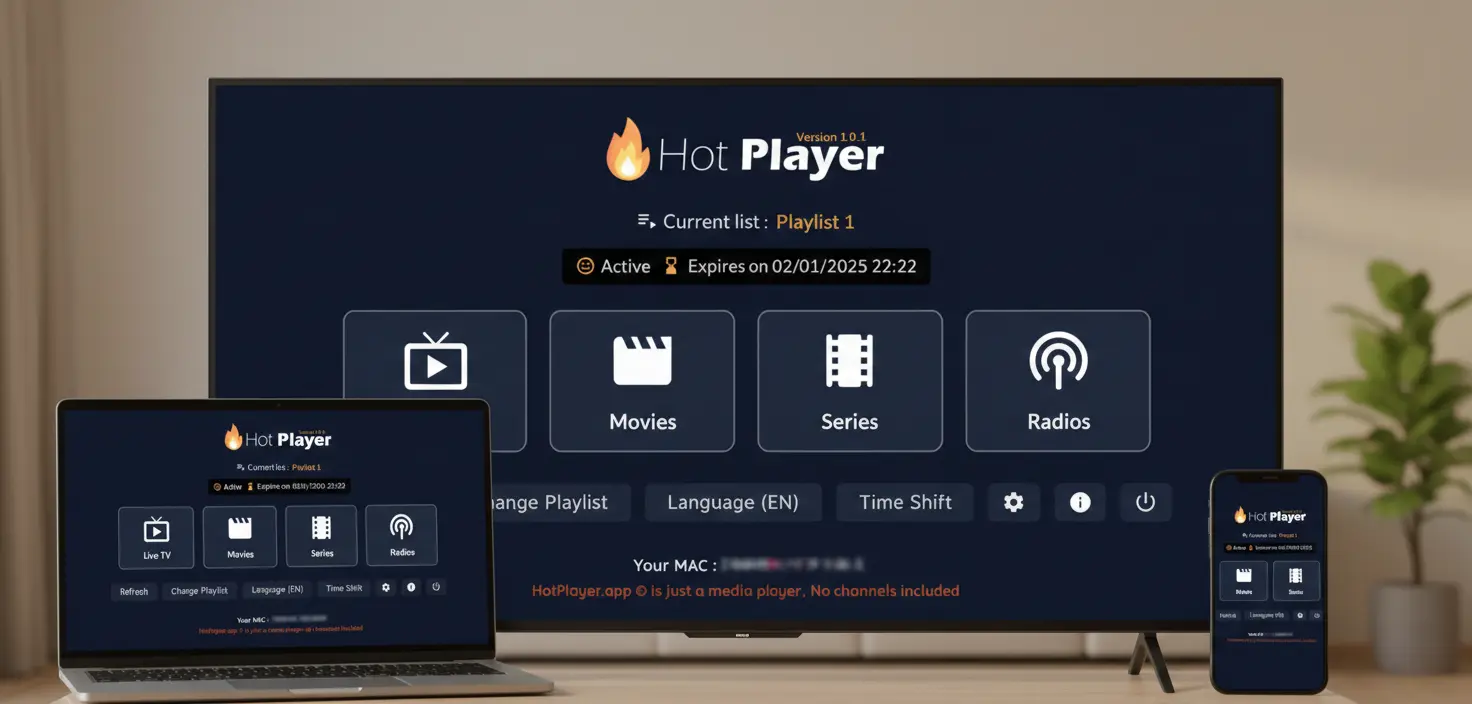
Want to install HotPlayer but not sure where to start? You're in the right place. This comprehensive guide walks you through installing HotPlayer on every major device - from Firestick and Android to iPhone, Smart TVs, and Windows PCs.
The good news? Installation is straightforward regardless of your device. Most installations take just 5-10 minutes, and we'll guide you step-by-step through the exact process for your specific platform. No technical expertise required.
Important: Understand What You're Installing
HotPlayer is a free media player application - it does not include, provide, or host any content. The app is simply a player, similar to VLC or Windows Media Player, but optimized for IPTV streaming.
To watch channels, you need to separately add an IPTV playlist. We operate as HotPlayerPro, providing premium IPTV playlist subscriptions (40,000+ channels) that work with the HotPlayer app.
Before You Start: What You Need
Before diving into device-specific instructions, make sure you have these basics covered:
Requirements Checklist:
Stable Internet Connection
Minimum 10 Mbps for HD, 25 Mbps+ for 4K streaming
Storage Space
100-150 MB free space (app size varies by device)
Compatible Device
Any device listed in this guide (see sections below)
IPTV Subscription (After Install)
For playlist access - try our 24-hour free trial
Time estimate: Plan for 5-15 minutes total - most of that is waiting for downloads to complete. The actual setup process is quick and easy.
📺 Installing HotPlayer on Firestick & Fire TV
Firestick is the most popular device for IPTV streaming, and for good reason - it's affordable, powerful, and works perfectly with HotPlayer. Here's the complete installation process:
Quick Installation Steps:
- 1
Enable Installation from Unknown Sources
This allows installing apps outside Amazon's app store:
- • Go to Settings → My Fire TV → Developer Options
- • Turn ON "Apps from Unknown Sources"
- • Confirm when prompted
- 2
Install Downloader App
We'll use this to download HotPlayer:
- • Search for "Downloader" in Amazon Appstore
- • Install the app (it's free)
- 3
Download HotPlayer APK
Use the Downloader app to get HotPlayer:
- • Open Downloader app
- • Click the URL field and enter:
https://apk.hotplayer.app - • Wait for download (about 60 seconds)
- 4
Install and Launch
- • Click "Install" when the APK finishes downloading
- • Wait for installation (30-60 seconds)
- • Click "Open" or find HotPlayer in your apps
Works on: All Fire TV devices including Fire TV Stick Lite, Fire TV Stick 4K, Fire TV Stick 4K Max, Fire TV Cube, and all Fire TV Edition smart TVs.
📱 Installing HotPlayer on Android Devices
Android offers the most flexibility with two installation methods. Choose whichever is easier for you:
Method 1: Google Play Store
- 1.Open Google Play Store on your Android device
- 2.Search for "HotPlayer"
- 3.Tap the official HotPlayer app
- 4.Tap "Install"
- 5.Launch from your app drawer after installation
Benefit: Automatic updates, verified app, no special settings needed
Method 2: Direct APK Download
Use this if HotPlayer isn't available in your region's Play Store:
- 1.Go to Settings → Security → Enable "Unknown Sources"
- 2.Open your browser and visit:
https://apk.hotplayer.app - 3.Download the APK file
- 4.Open the downloaded file from notifications
- 5.Tap "Install" and wait for completion
Works on: Android phones, tablets, Android TV boxes, and any device running Android 5.0 or higher.
🍎 Installing HotPlayer on iPhone & iPad
iOS installation is the simplest of all - no side-loading, no special settings. HotPlayer is available directly from Apple's App Store:
Installation Steps:
- 1Open the App Store on your iPhone or iPad
- 2Tap the search tab and type "HotPlayer"
- 3Tap "Get" or the cloud download icon
- 4Authenticate with Face ID, Touch ID, or your password
- 5Launch HotPlayer from your home screen
Works on: All iPhone models (iPhone 6S and newer) and all iPad models running iOS 12.0 or later. Installation takes about 2 minutes.
📺 Installing HotPlayer on Smart TVs
HotPlayer works on most modern Smart TVs. The installation method varies by manufacturer:
📺Samsung Smart TV (Tizen OS)
- 1. Press Smart Hub button on remote
- 2. Navigate to Apps
- 3. Search for "HotPlayer"
- 4. Select and click Install
- 5. Open from Smart Hub after installation
📺LG Smart TV (webOS)
- 1. Press Home button on remote
- 2. Go to LG Content Store
- 3. Search for "HotPlayer"
- 4. Click Install
- 5. Launch from your apps list
📺Roku Devices & Roku TV
- 1. Press Home on Roku remote
- 2. Navigate to Streaming Channels
- 3. Search for "HotPlayer"
- 4. Select Add Channel
- 5. Open from channel list after installation
Note: Make sure your Smart TV firmware is updated to the latest version for best app compatibility. Some older TV models may not support HotPlayer.
💻 Installing HotPlayer on Windows PC
Transform your Windows computer into a powerful IPTV streaming station with HotPlayer from the Microsoft Store:
Installation Steps:
- 1Open Microsoft Store (search from Start menu)
- 2Search for "HotPlayer"
- 3Click "Get" or "Install"
- 4Wait for automatic download and installation
- 5Launch from Start menu or Microsoft Store
Works on: Windows 10 and Windows 11. The app automatically updates through Microsoft Store.
🎬 Adding Your IPTV Playlist to HotPlayer
You've installed HotPlayer - great! But remember: the app is just a player. To actually watch channels, you need to add an IPTV playlist. Here's how it works:
Step 1: Get Your IPTV Subscription
First, you need an IPTV service. We provide premium playlists with 40,000+ channels:
- • Visit our packages page to choose a plan
- • Or start with our 24-hour free trial (no credit card required)
- • After subscribing, you'll receive playlist credentials via email
Step 2: Load Playlist Into HotPlayer
HotPlayer supports multiple loading methods. Choose the one that works best for you:
M3U URL Method
- 1. Open HotPlayer → Settings → Playlist
- 2. Select "Add M3U URL"
- 3. Paste the URL from your subscription email
- 4. Click "Save" and wait for channels to load
✓ Auto-updates playlist, easiest method
Xtream Codes API Method
- 1. Go to HotPlayer Settings → Xtream Codes
- 2. Enter Server URL, Username, Password
- 3. Tap "Test Connection"
- 4. Save and wait for content to load
Upload M3U File Method
- 1. Download M3U file to your device
- 2. Open HotPlayer → Settings → Import File
- 3. Browse and select your M3U file
- 4. Wait for import to complete
Tip: The M3U URL method is best because it automatically refreshes your channel list whenever you open HotPlayer, ensuring you always have the latest channels.
🔧 Troubleshooting Common Issues
Ran into a snag? Here are solutions to the most common installation problems:
Can't find HotPlayer in app store
- Update your device's app store to the latest version
- Try searching "Hot Player" with a space
- Check if your region supports the app
- Use direct download links provided in device sections above
Installation keeps failing
- Check internet connection - ensure stable WiFi
- Free up 200+ MB storage space
- Restart your device and try again
- Update device operating system
- For Firestick: Verify "Unknown Sources" is enabled
App crashes or won't open
- Clear app cache and data
- Uninstall and reinstall HotPlayer
- Update to latest app version
- Update device OS to latest version
- Restart your device
Playlist won't load or shows error
- Double-check playlist URL/credentials are correct
- Verify your IPTV subscription is active
- Test with a different playlist loading method
- Check internet connection stability
- Grant HotPlayer storage/network permissions
Still Need Help?
Our 24/7 support team is here to help with any installation issues:
- • Email: support@hotplayerpro.org
- • Visit: Contact page for more support options
- • FAQ: Check our FAQ page for more solutions
Ready to Start Streaming
You now have everything you need to install HotPlayer on any device. Whether you chose Firestick, Android, iPhone, Smart TV, or Windows PC - the process is straightforward and takes just minutes.
Remember the two-part system:
- HotPlayer App - Free media player (what you just installed)
- IPTV Subscription - Provides the playlist with 40,000+ channels
Once you have both components working together, you'll have access to thousands of channels, movies, and shows on any device, anywhere.
Next Step: Get Your IPTV Subscription
HotPlayer is installed. Now add content with our premium IPTV service.