
The Complete HotPlayer Installation Guide
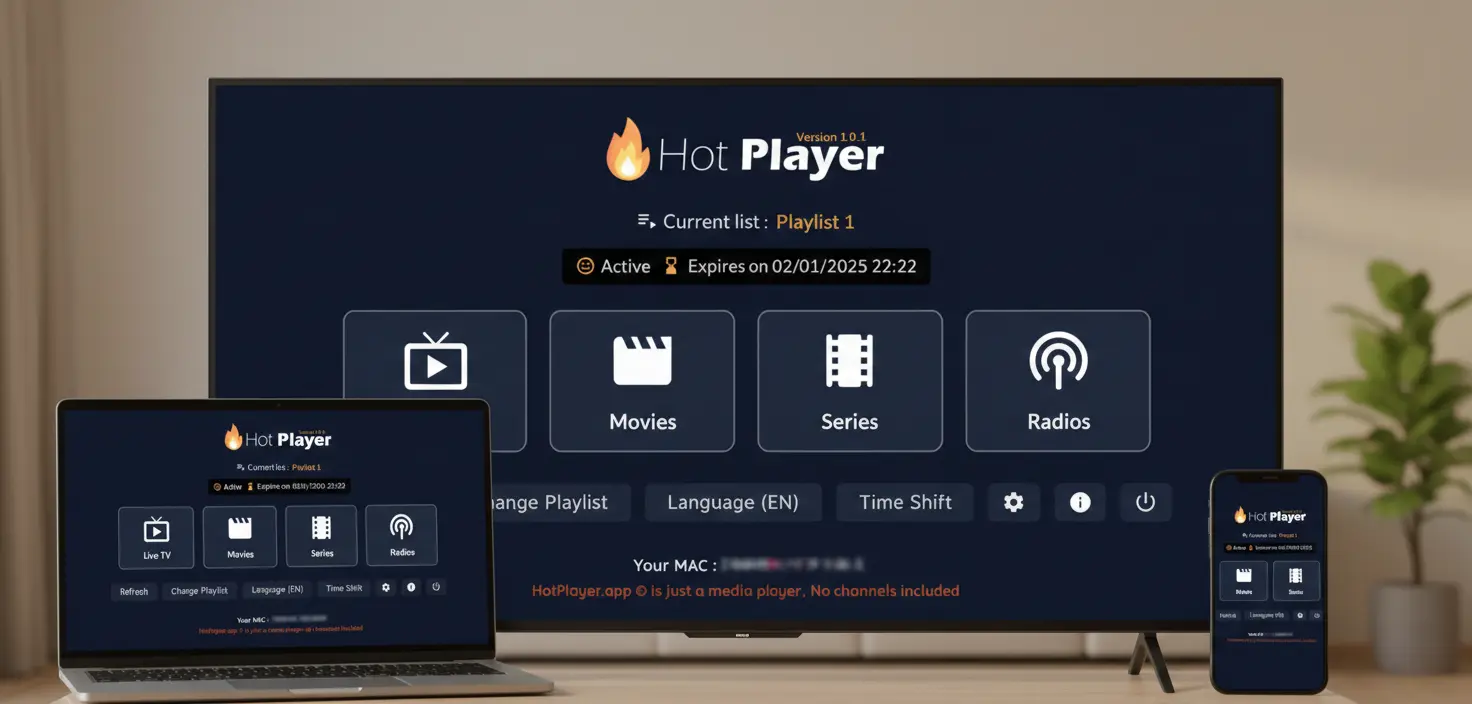
Welcome to the definitive HotPlayer installation guide. Whether you're setting up for the first time or optimizing your existing installation, this guide covers everything you need to know to get streaming with 40,000+ channels quickly and efficiently.
We'll walk you through installation on all major platforms, share expert tips to maximize performance, and provide troubleshooting solutions for common issues.
Understanding the Setup
HotPlayer app is a free IPTV media player - it does not include or provide content. Think of it like VLC Player for IPTV.
HotPlayerPro (our service) provides premium IPTV playlist subscriptions with 40,000+ channels that integrate with the HotPlayer app. You need both to stream.
⚡ Quick Start Guide
Before diving into device-specific instructions, here's the big-picture process:
Download HotPlayer App
Free from your device's app store (Google Play, App Store, Microsoft Store, etc.)
Get IPTV Service Subscription
Subscribe to our IPTV service or try the 24-hour free trial
Add Playlist to HotPlayer
Enter your playlist URL or credentials (sent via email)
Start Streaming!
Browse 40,000+ channels and 100,000+ VOD titles
⏱️ Time Required: 10-15 minutes total. Most time is spent waiting for downloads.
📱 Device-Specific Setup
Choose your device below for specific installation instructions:
📺Fire TV / Firestick
- Go to Settings → My Fire TV → Developer Options
- Enable "Apps from Unknown Sources"
- Install "Downloader" app from Amazon Appstore
- Open Downloader, enter:
https://apk.hotplayer.app - Install the downloaded APK
- Open HotPlayer from your apps
📱Android Phone/Tablet
Method 1: Google Play Store (Recommended)
- Open Google Play Store
- Search "HotPlayer"
- Tap Install
Method 2: Direct APK
- Enable "Unknown Sources" in Settings
- Visit https://apk.hotplayer.app
- Download and install APK
🍎iPhone / iPad
- Open App Store
- Search "HotPlayer"
- Tap "Get"
- Authenticate with Face/Touch ID
- Open from home screen
✓ Simplest installation - no special settings needed
📺Smart TVs (Samsung/LG/Roku)
Samsung (Tizen):
Smart Hub → Apps → Search "HotPlayer" → Install
LG (webOS):
Home → LG Content Store → Search "HotPlayer" → Install
Roku:
Home → Streaming Channels → Search "HotPlayer" → Add Channel
💻Windows PC
- Open Microsoft Store
- Search "HotPlayer"
- Click "Get" or "Install"
- Launch from Start menu
💡 Tip: For detailed device-specific guides, visit our download page.
🎬 Playlist Configuration
Once HotPlayer is installed, you need to connect it to an IPTV service. Here's how:
Adding Your Playlist - 3 Methods
Method 1: M3U URL
- Open HotPlayer → Settings → Playlist
- Select "Add M3U URL"
- Paste URL from subscription email
- Click "Save" and wait for sync
✓ Auto-updates playlist regularly
Method 2: Xtream Codes API
- Go to Settings → Xtream Codes
- Enter Server URL, Username, Password
- Test connection
- Save and load channels
Method 3: Upload M3U File
- Download M3U file to device
- Settings → Import File
- Browse and select M3U file
- Wait for import completion
⚠️ Important: Don't have an IPTV subscription yet? Start with our 24-hour free trial - no credit card required!
🚀 Optimization & Best Practices
Get the most out of HotPlayer with these expert tips:
1. Organize Favorites
With 40,000+ channels, use the Favorites feature liberally. Create custom lists for sports, news, movies, etc. to access content instantly.
2. Optimize Quality
Adjust streaming quality based on your internet: 4K for 25+ Mbps, HD for 10-25 Mbps, SD for 5-10 Mbps. This prevents buffering.
3. Enable EPG
Turn on Electronic Program Guide in settings. It shows what's currently playing and upcoming shows - just like traditional TV.
4. Master Search
Use search instead of scrolling. Type channel names, show titles, or keywords to quickly find exactly what you want.
5. Set Parental Controls
Protect kids with PIN-locked parental controls. Block adult categories and set viewing time limits in Settings.
6. Wired > WiFi
Whenever possible, use Ethernet cable instead of WiFi for more stable streaming and less buffering.
7. Keep Updated
Enable auto-updates in your app store. Regular updates bring performance improvements and new features.
8. Multi-Device Setup
Install on all your devices with the same playlist credentials. Watch anywhere - TV, phone, tablet, PC.
💡 Pro Tip: Category Filtering
Use HotPlayer's category system to filter channels by type (Sports, Movies, News, International). This makes navigating thousands of channels much easier.
🔧 Troubleshooting Guide
Common issues and their solutions:
❌ Channels not loading / "No content"
Solutions:
- Verify you've added a playlist (app is empty without one)
- Double-check credentials from subscription email
- Manually refresh playlist in Settings
- Check internet connection
- Verify subscription is active
🔄 Constant buffering / slow loading
Solutions:
- Test internet speed (need 10+ Mbps for HD)
- Lower streaming quality in settings
- Switch from WiFi to Ethernet cable
- Restart your router
- Close other apps using bandwidth
- Try a different server in app settings
💥 App crashes or freezes
Solutions:
- Update to latest app version
- Clear app cache and data
- Restart your device
- Uninstall and reinstall HotPlayer
- Free up device storage space
- Check for OS updates
📡 EPG not showing program info
Solutions:
- Enable EPG in Settings
- Wait 5-10 minutes for initial EPG sync
- Manually refresh EPG data
- Note: Not all channels have EPG available
🎵 Audio/video out of sync
Solutions:
- Switch to different channel and back
- Restart the stream
- Check internet stability
- Update HotPlayer to latest version
🆘 Still Need Help?
Our 24/7 support team is here to assist:
- • Email: support@hotplayerpro.org
- • FAQ: Visit our FAQ page
- • Contact: Contact form
Ready to Start Streaming?
You now have everything needed to install, configure, and optimize HotPlayer on any device. The entire process takes just 10-15 minutes.
Remember: HotPlayer app is free. You'll need an IPTV subscription (starting at $5/month for 12-month plan) to access 40,000+ channels and 100,000+ VOD.